Transfers Guide
Send a confidential document to a client who has no account
A lawyer sends a contract to a client who has never heard of Databeamer. Passphrase by phone, link by email, done in five minutes.
The situation. You need to send a signed contract to a client. Email attachments are out of the question, and the client is not going to install anything or create an account for one document.
What you will use. A transfer to a guest, protected with a passphrase.
1. Start the transfer #
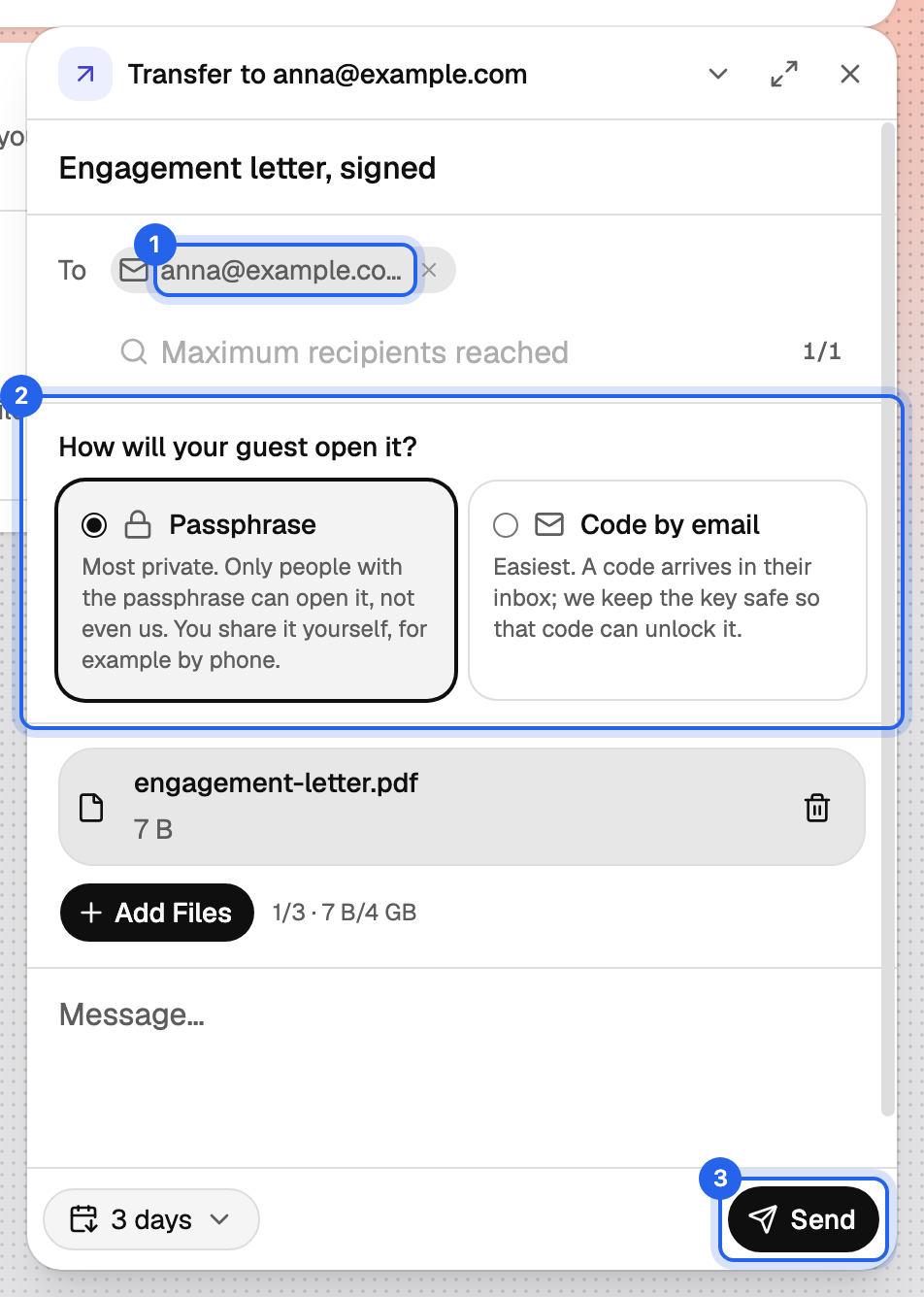
Drag the contract onto the Databeamer window, or choose New Transfer from the New menu. Give it a clear Title, for example "Engagement letter, signed". Add a short Message if you like; it is encrypted along with the files.
2. Add the client as a guest #
In To, type the client's full email address and choose Add … as a guest. Databeamer explains that they are not on Databeamer yet and will get a secure link by email.
Under How will your guest open it? keep Passphrase. It is the most private option: the email link alone cannot open anything.
3. Choose how long it stays available #
Set Expires after to the shortest period that gives the client time to download, typically 3 or 7 days. After that the files are removed automatically; the record of the transfer stays in your overview.
4. Send, then copy the passphrase #
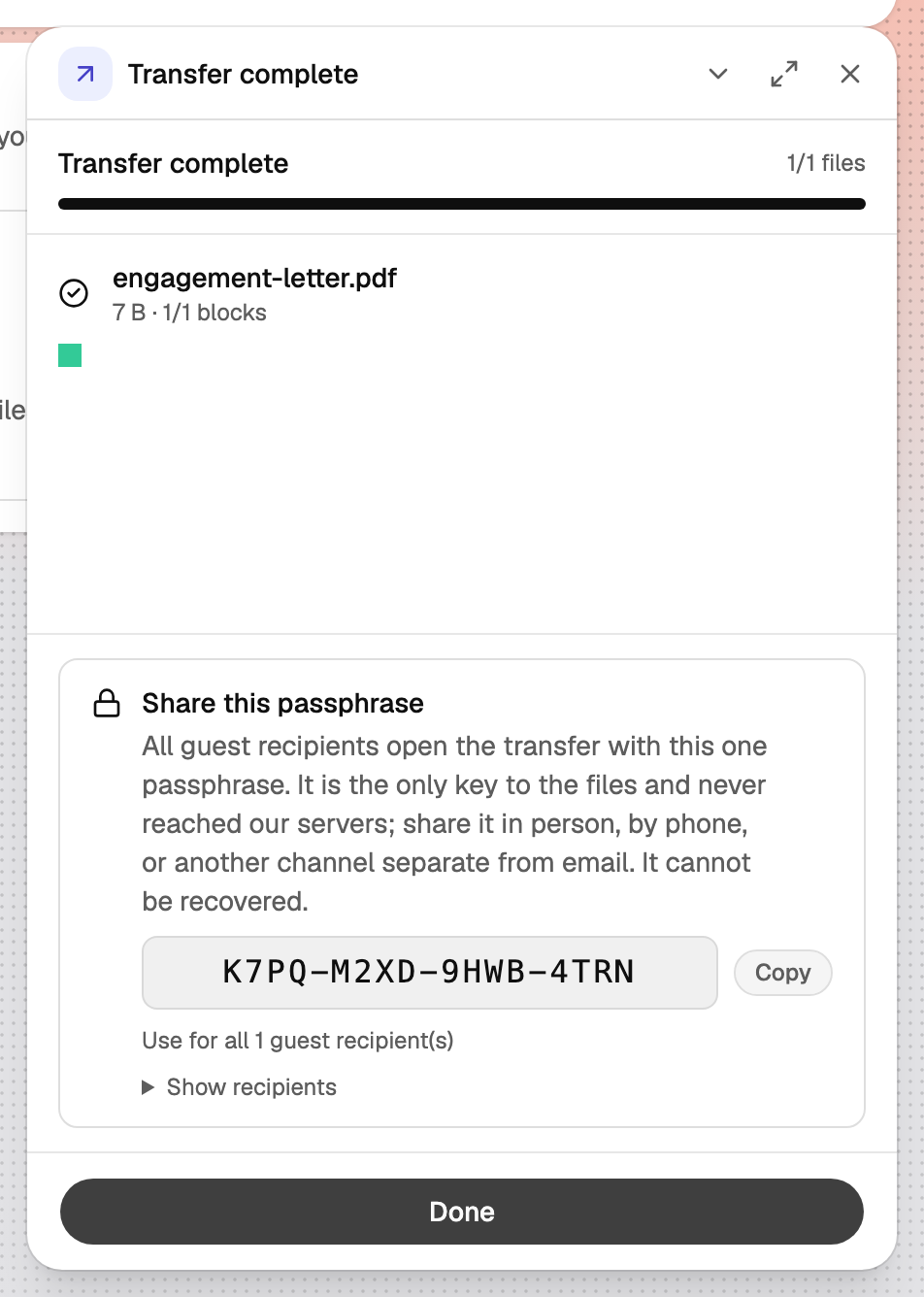
Click Send. Once the upload finishes, Databeamer shows Share this passphrase with a code like XXXX-XXXX-XXXX-XXXX. Copy it now. It cannot be shown again, and Databeamer does not keep it.
5. Give the client the passphrase another way #
Call the client, or send the passphrase in a text message. Do not put it in an email: the point is that the link and the passphrase travel separately, so neither one on its own is enough.
What the client sees #
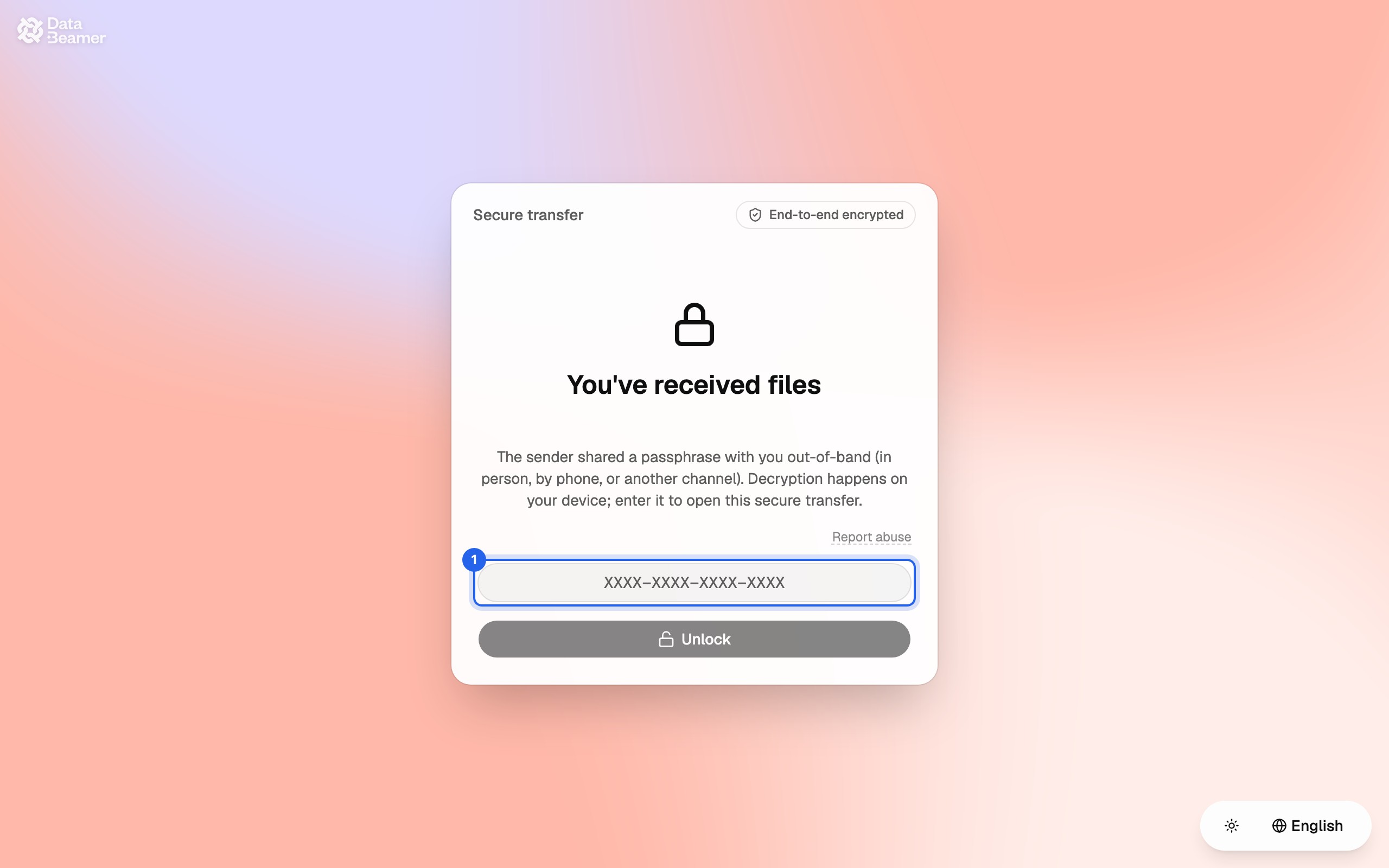
They receive an email from Databeamer with a Secure transfer link.
Afterwards #
Open the transfer in Exchange › Transfers to check its Activity: you see when the client downloaded. If they report that the link no longer works, the transfer has expired; send a new one.
If the client is a regular #
Once a client has an account, add them to your Contacts. Future transfers to them need no passphrase at all: they accept in the app and the files are encrypted directly to their keys.