Getting started Reference
Parts of the interface
The names these docs use for the parts of the screen, on desktop and on your phone, with each one pointed out.
These docs refer to the parts of the screen by fixed names. This page shows where each one is. For what the areas of the app are for, see Find your way around.
Desktop #
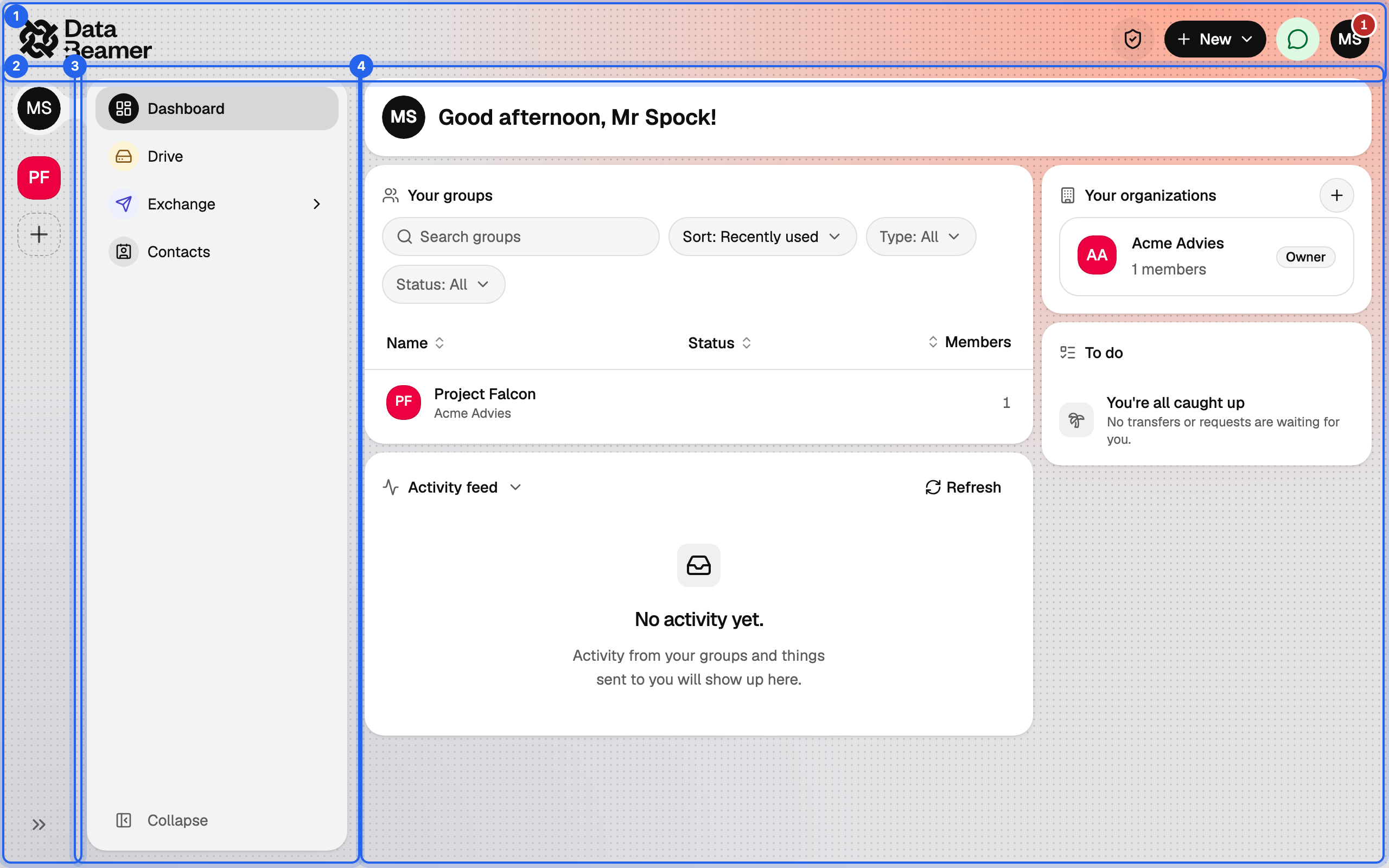
Top bar #
The band across the top. On the left it shows the logo, or the breadcrumb trail when you are inside a group. On the right sit the encryption indicator, the New button, the Chats button and your user menu.
Groups rail #
The narrow column on the far left, one square per group you belong to, with your personal space at the top. Click a square to enter that group. New group sits at the bottom. The rail hides itself while you have no groups and can be widened with the arrow at its foot to show group names.
Sidebar #
The navigation for where you are: Dashboard, Drive, Exchange and Contacts in your personal space; Dashboard, Chat, Drive, Exchange and, for owners and admins, Settings inside a group. Collapse at the bottom shrinks it to icons.
Content area #
Everything to the right of the sidebar: the page you are on, laid out as one or more panels.
The top bar's buttons #

- Encryption indicator: the shield. It shows that your keys are loaded and briefly animates while something is being encrypted or decrypted. Click it for the details.
- New: starts a transfer, request, group or organisation from anywhere. See the New menu.
- Chats: opens the Chats window with your direct messages and group chats. A badge shows unread messages.
- User menu: your avatar. Notifications, settings, dark mode, what's new, feedback and sign out.
Inside a group #
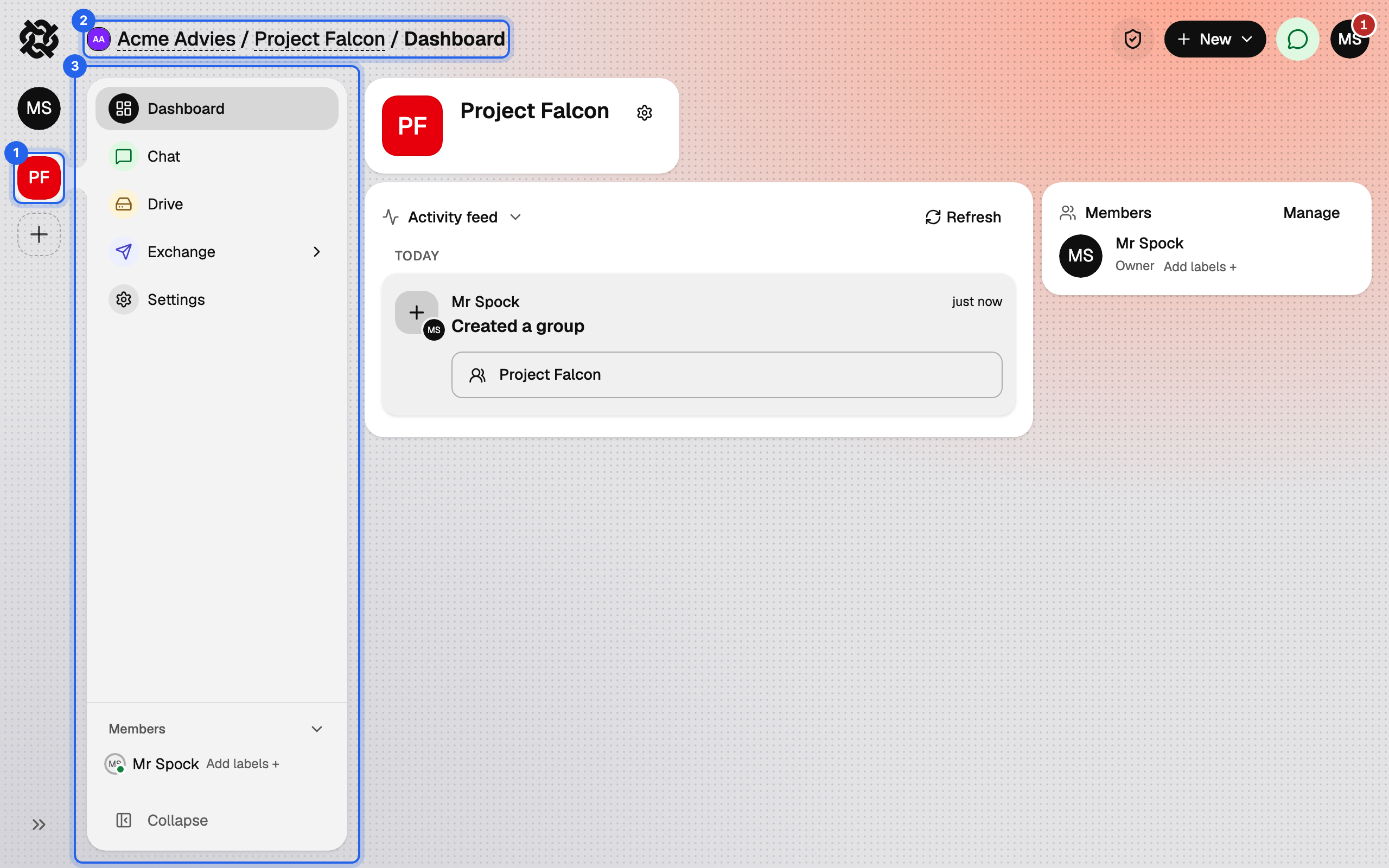
Breadcrumb trail #
Replaces the logo in the top bar while you are inside a group: organisation, group, page. Each part is a link, so you can jump up a level.
Group sidebar #
The same place as the personal sidebar, with the group's pages. The Members panel at its bottom lists who is in the group and who is online.
The Chats window #
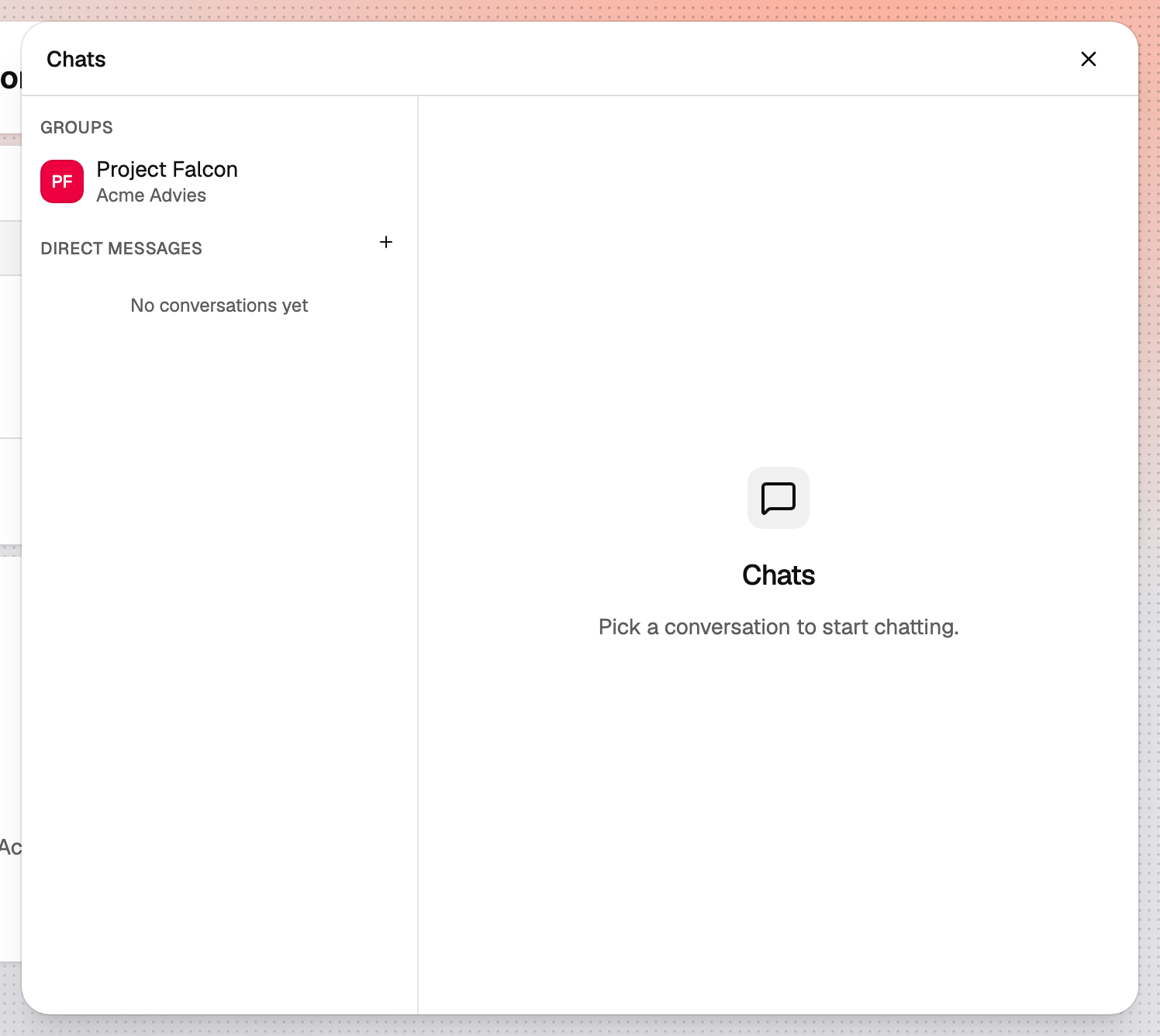
A floating window that opens from the Chats button and stays over whatever page you are on. On the left is the conversation list, with groups and direct messages; on the right the thread of the conversation you picked. Close it with the cross; your place in the app is kept.
Floating windows, panels and sheets #
- Floating window: a form that opens over the page and can be moved aside: New Transfer, New Request, New Secure Mail and the Chats window.
- Panel: a card inside the content area, such as Your groups or To do on the dashboard. The Uploads and Downloads panels appear at the bottom right while something is in progress.
- Sheet: a pane that slides in from the right with details about one item, such as a file's Details.
- Dialog: a small box in the middle that asks you to confirm something.
On your phone #
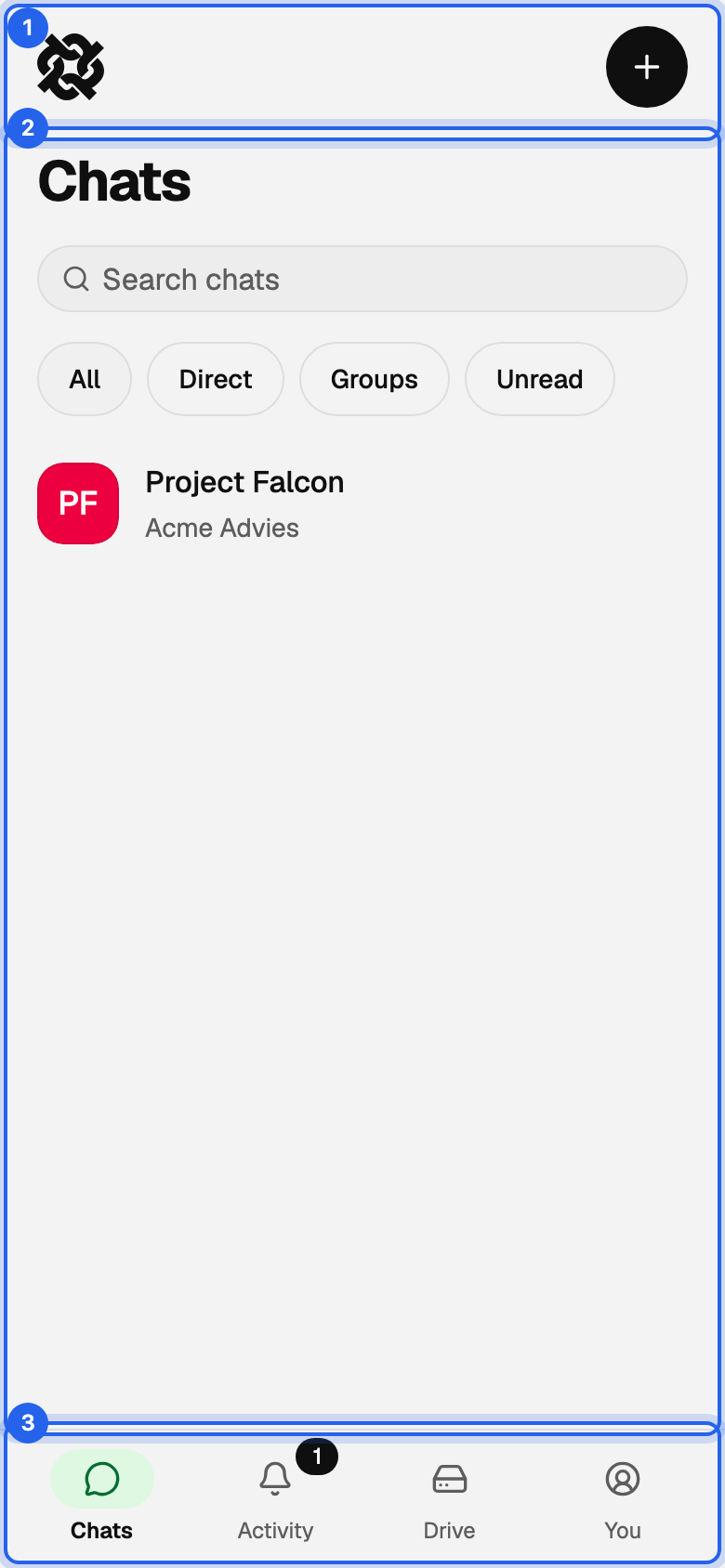
Top bar #
The logo and, on pages that have one, a New button. Inside a group it shows a back chip to the place you came from and the group's tools.
Page #
The content of the tab you are on. Lists run edge to edge; other pages sit on a white card.
Tab bar #
The four tabs along the bottom: Chats, Activity, Drive and You. The badge on a tab counts what is waiting for you there. It hides while you are reading a conversation or typing.