Transfers Reference
Track and receive transfers
Statuses, the activity log, accepting what you receive, and saving files to Drive.
The Transfers overview #
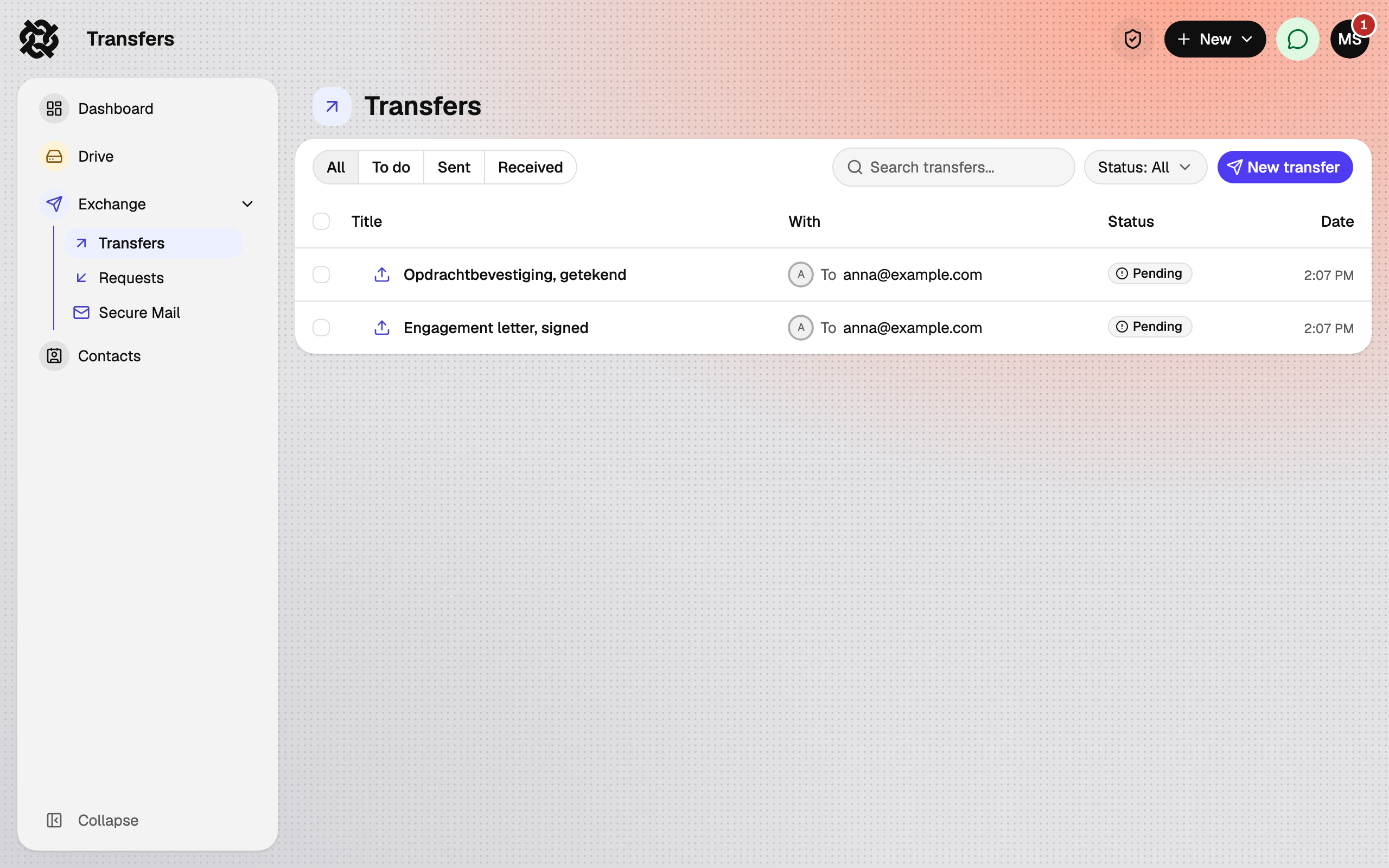
Exchange › Transfers has three tabs: Received, Sent and Sent to self. The To do filter shows only transfers that still need your action.
Each transfer has a status:
| Status | Meaning |
|---|---|
| Pending | Sent, not yet accepted or opened by everyone. |
| Completed | Every recipient has accepted or downloaded. |
| Expired | The retention period has passed and the files were removed. |
| Cancelled | The sender deleted the transfer. |
Following a transfer you sent #
Open a transfer to see its Activity: who accepted, declined or downloaded, and when. Guest downloads appear here too, and in your activity feed. When a recipient accepts, you receive a Transfer accepted notification.
Delete Transfer removes the files immediately for everyone.
Receiving a transfer #
A transfer sent to your account appears on your dashboard under To do and in Received. Open it and choose Accept or Decline. The sender can see which you chose.
After accepting:
- Download a single file or Download as ZIP for everything. Files are decrypted on your device.
- Save to Databeamer Drive copies the files into a folder of your choice so you keep them after the transfer expires.
- Report abuse if the transfer is unwanted or harmful.
Transfers expire. If you want to keep the files, save them to Drive before the expiry date shown on the transfer.
Security detailsWhat is this?
- On expiry a background job marks the transfer expired, tombstones its group and purges the encrypted blocks; a record without content stays for the activity log. Delete Transfer does the same immediately. Files a recipient saved to their Drive have their own keys and records and survive.
- Guest access is logged: for a passphrase as a receipt the guest's browser reports after unlocking, for the code-by-email mode as each key release.
- Accept, decline, download and guest access are written to the audit log; entries made by your devices are signed, guest downloads are server entries.