Requests Reference
Create a request
Ask clients or partners for documents or answers through an encrypted form they can fill in without an account.
A request turns "please send me your passport and last three payslips" into a secure form. The people you ask upload their files or answers through a link; everything is locked for you before it leaves their browser.
Security detailsWhat is this?
- A request has a group of its own. The sender's browser encrypts each answer and each uploaded file's key with ECIES to the request group's hybrid exchange public key (X25519 + ML-KEM-768). Only holders of the group's private key can open submissions: you, the readers you add and, for a group request, the group's members.
- Senders are write-only: a guest holds no key that opens any submission, including their own after sending, and a sender with an account sees only their own.
- Each sender gets a throw-away key pair in their browser, used to sign their audit entries and to prove ownership when retracting.
- For Open requests the public key is served to anyone who has the link. Submissions are rate-limited per address and can require a CAPTCHA.
Starting a request #
Choose New Request from the New menu, or open Exchange › Requests and click New request.
Who is involved #
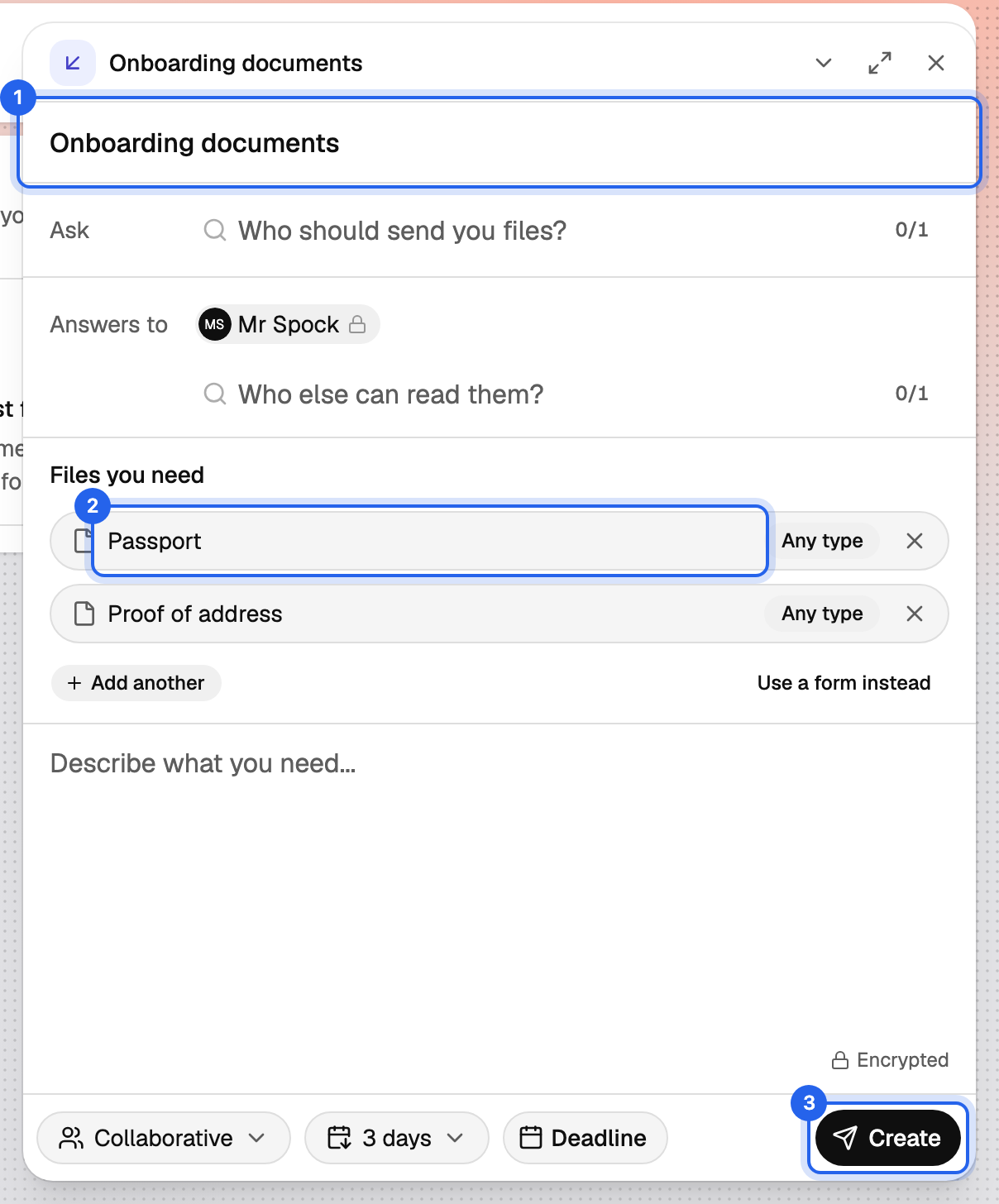
- Title: what you need, in a few words.
- Ask: who should send you something. Pick accounts from your contacts, or type a guest's email address.
- Answers to: who, besides you, may read the answers. Only accounts can be readers. In a group request, every group member can read the answers.
What you need #
Either list the files you need as named slots, such as "Passport" or "Proof of address", adding more with Add another. Or choose Use a form instead to build a form with text, text area, date, number, select, file, email and yes/no fields.
Add an optional Message; it is encrypted like everything else.
How it is fulfilled #
- Collaborative (default): one submission completes the request for everyone you asked. Good for "someone on your team, please send me X".
- Individual: each person you asked submits separately. Good for collecting the same documents from several people.
- Open: anyone with the link can submit, as often as needed. Shown when your plan includes open requests. Good for intake forms you publish on a website.
When it ends #
- Retention decides how long submissions are kept: from 1 day up to a year, capped by your plan.
- Deadline closes the request to new submissions at a given date.
Click Create. Your plan limits how many requests can be active at once; closed and deleted requests do not count.
Next: Manage submissions.