Files Reference
Upload and organise files
Add files and folders to Drive, rename and move them, and check what the server can and cannot see.
Drive is your encrypted file storage. Every file is encrypted on your device before upload, including its name. The server stores and serves the encrypted pieces without being able to open them.
Uploading #
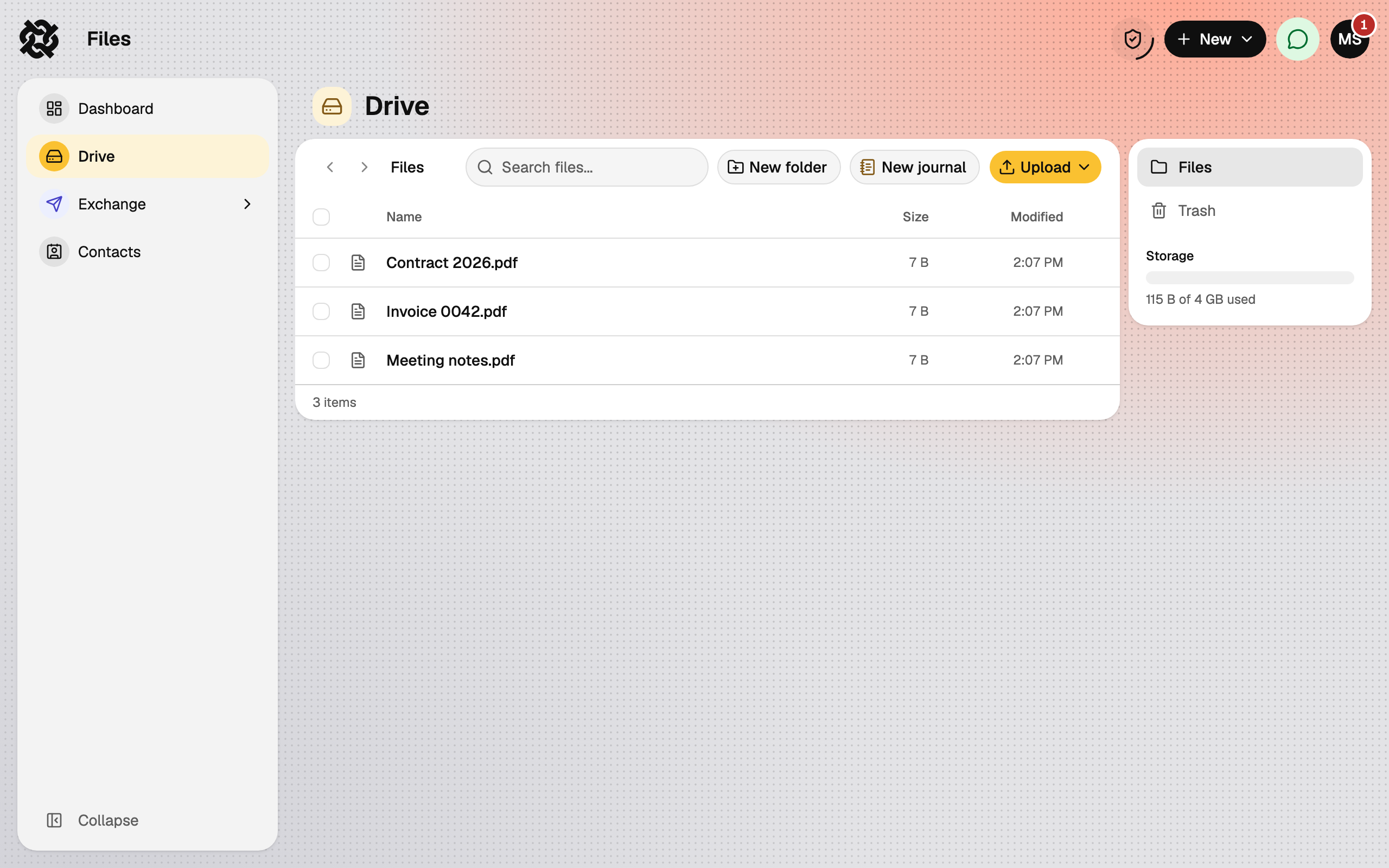
- Choose Upload, then Files or Folder. Or drag files from your desktop onto the Drive window.
- Progress appears in the Uploads panel. Large files are split into pieces, so an interrupted upload can resume.
- Each file and folder shows up under a heading by type: Folders, Journals, Documents, Images, Spreadsheets, Archives and Other files.
Security detailsWhat is this?
- A file is split into blocks, each encrypted with ChaCha20-Poly1305 under a random per-file key and bound to its file and position.
- The file key is wrapped with the symmetric key of the group that owns the folder (your personal group, or the group's own key for a shared Drive). Members unwrap it with their copy of the group key; the server never holds the file key in clear.
- Name, type, size, modified date and a whole-file checksum travel in one metadata blob encrypted under the file key. Folder names are encrypted under the group key.
- The server stores the encrypted blocks, the encrypted size, the wrapped file key, the group id, the folder tree and timestamps, plus a SHA-256 hash of the plaintext that the client reports for the security scan (see below). Every change to Drive is written together with an audit entry signed by your device.
Your plan sets a maximum file size and a storage total. The storage meter at the bottom of Drive shows how much you have used.
Folders #
- New folder creates one in the current location.
- To move items, open a row's menu, choose Move to folder, pick the destination and confirm with Move here.
- Select several rows to move or trash them together. Select all picks everything in view.
Renaming and downloading #
From a row's menu you can Open, Rename, Download or Download as ZIP. Downloads are decrypted on your device and checked for integrity; the Downloads panel reports File integrity verified when the check passes.
Security detailsWhat is this?
Each block is authenticated as it is decrypted, and the whole file is compared with the checksum from its encrypted metadata before it is shown as complete.
Searching #
The Search files… box filters the current view by name. Because names are encrypted, the search runs on your device, not on the server.
Details: what we store #
Open Details on any file. The sheet has two halves:
- On your device shows what you see: the real name, size and type.
- What we store shows what the server holds: an opaque identifier, the encrypted size and nothing else.
It also shows the Security scan status. Databeamer checks uploads against known threats without ever seeing the content; the result reads No threats detected, Scan in progress, Threat detected or Not scanned.
Security detailsWhat is this?
The scan is a hash lookup, not a content scan. Your browser computes a SHA-256 hash of the plaintext before encrypting and reports it with the upload; it is looked up in a threat-intelligence service. The result is advisory: downloads are never blocked on it, and only a Threat detected result has a consequence (the file cannot be saved to a Drive). Because identical files produce identical hashes, the server can tell that two users hold the same file, though not what it is.
Sharing files #
There is no per-file share button, by design. To share, either put the file in a group's Drive, where every member can see it, or send it as a transfer. Files you receive can be copied into your own Drive with Save to Databeamer Drive.