Requests Guide
Collect onboarding documents from a new client
An accountant needs a passport, a proof of address and last year's statements from a new client. One request, one link, nothing by email.
The situation. A new client has signed up. Before you can start, you need their passport, a proof of address and last year's bank statements. Asking for them by email means sensitive scans sitting in two mailboxes forever.
What you will use. A request with named file slots, sent to the client as a guest.
1. Create the request #
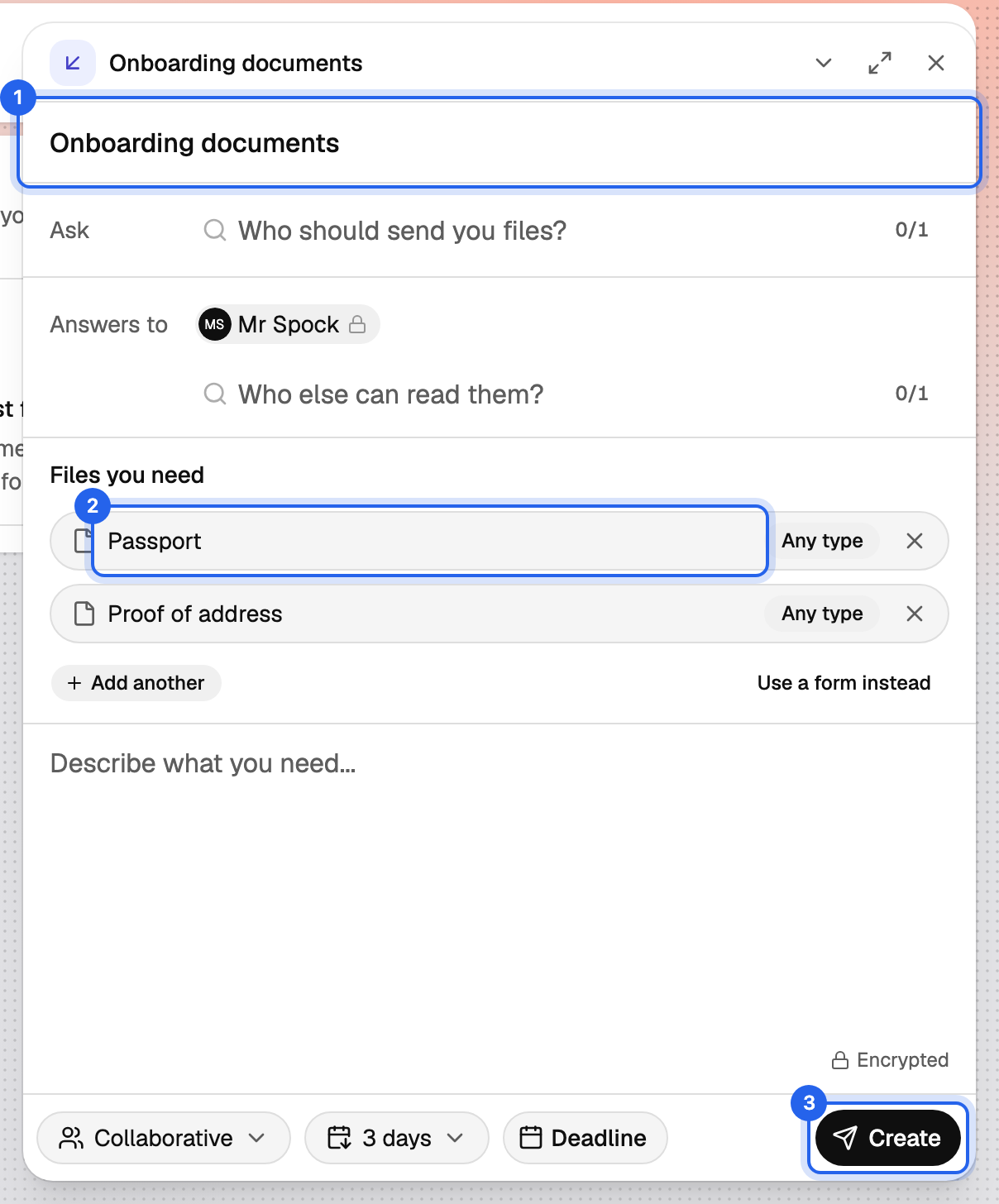
Choose New Request from the New menu. Give it a Title the client will recognise, such as "Onboarding documents for [client name]".
2. Say who sends and who may read #
- Under Ask, type the client's email address. They do not need an account.
- Under Answers to, add the colleague who will process the file. You are always included. If you are working in a group, create the request there instead: every group member can then read the answers.
3. List what you need #
Under Files you need, add one slot per document: "Passport", "Proof of address", "Bank statements 2025". Use Add another for each. Clear slot names mean fewer follow-up questions.
Add a Message explaining why you need these and by when.
4. Decide how it ends #
- Fulfillment: keep Collaborative. One complete submission is all you need.
- Retention: pick how long the files stay in the request. If you will export them to Drive, a short period is fine.
- Deadline: set the date you need the documents by. After it, the link stops accepting submissions.
Choose Create.
5. Send the link #
The client receives an email from Databeamer with the link. If you prefer to send it yourself, copy the Submission URL from the request and paste it into your own message.
What the client sees #
A page with your name under Requested by, your message, and an upload field per document. The page says Only the requester can read it, which is literally true: the files are encrypted in their browser for your keys. They upload, choose Submit, and see Submitted!. They can Retract submission for a day if they picked the wrong file. The client's side is described in Answer a request.
6. Process what came in #
You receive a New submission notification. Open the request and the Submissions tab, view Files, and choose Export to Databeamer Drive to copy everything into the client's folder. From then on the documents live in Drive, independent of the request's retention period.
Next time #
If you onboard clients regularly, create the same slots each time; it takes a minute. For a self-service version you can link from your website, see Publish an intake form.