Transfers Reference
Send a transfer
Send files to anyone, with or without a Databeamer account, and choose how guests unlock them.
A transfer is a one-off delivery of files to one or more people. The files are encrypted on your device; the recipient decrypts them on theirs. Nobody in between can open them.
Starting a transfer #
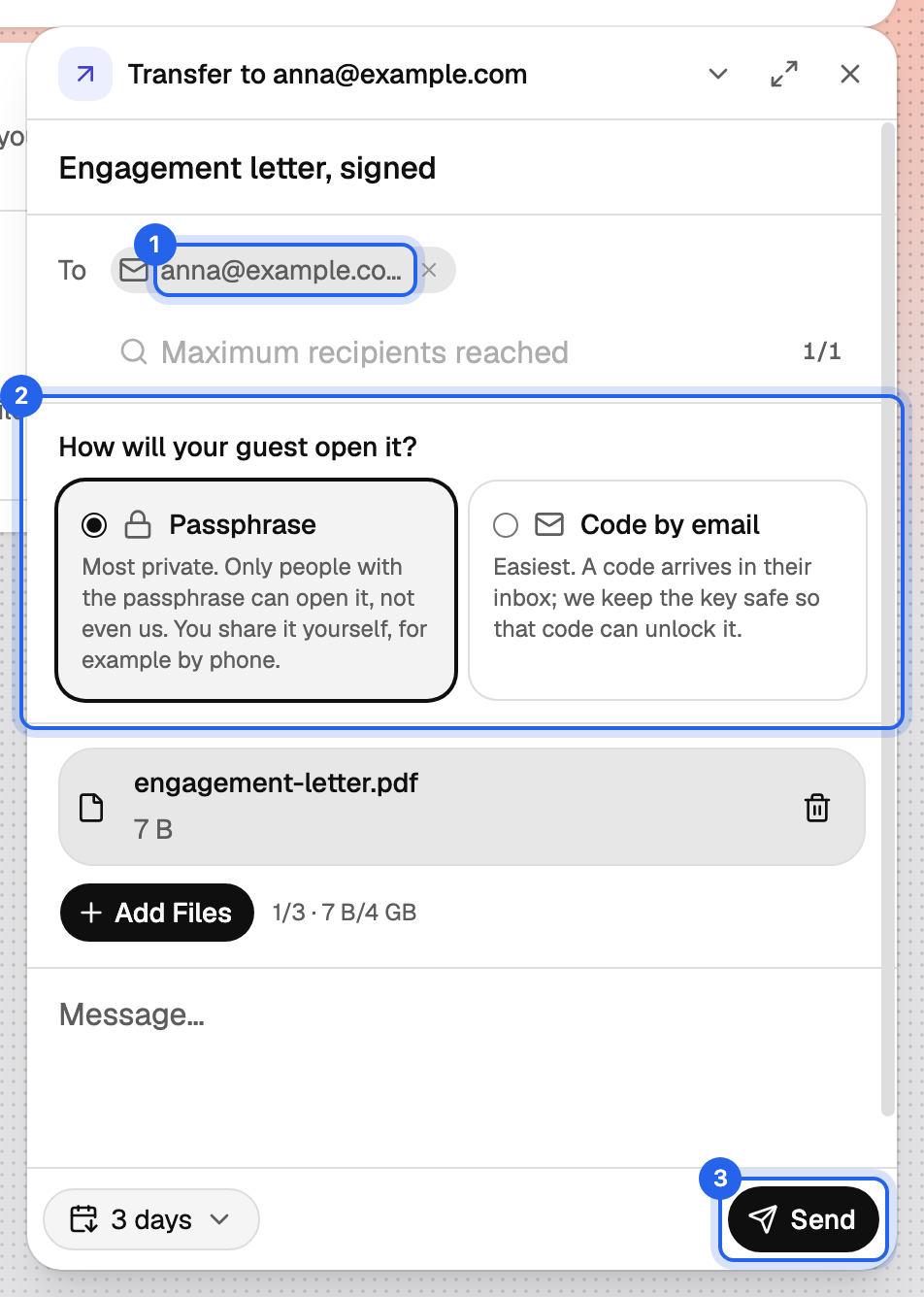
Choose New Transfer from the New menu, open Exchange › Transfers and click New transfer, or simply drop files anywhere onto the window.
Fill in:
- Title and an optional Message. The message is encrypted too.
- To: people with a Databeamer account, or a guest's email address.
- Add Files.
- Expires after: 1, 3, 7 or 30 days. After expiry the files are removed; the transfer's record and activity stay. Your plan's maximum retention decides which options you see.
Click Send. While files upload you can Pause, Resume, Retry or Start Over.
Sending to people with an account #
Type a name and pick them from your contacts, public profiles or your organisation's members. Before you select someone, Databeamer shows a short identity check: their organisations, groups you have in common, and how long they have been a member.
The recipient sees the transfer in Exchange › Transfers and can Accept or Decline. You are notified either way.
Security detailsWhat is this?
- Each personal transfer gets a group of its own with a fresh key set. Each file is encrypted on your device with a random file key; the file keys and the encrypted index (title, message, file list) are protected by the transfer group's symmetric key.
- That group key is wrapped for every recipient with ECIES to their hybrid exchange public key (X25519 + ML-KEM-768). The recipient unwraps it with their private key; the server stores only the wrapped copies.
- A transfer sent from a group is a child group of it, wrapped to the group key and to each recipient, so every group member can open it.
- Before you pick a recipient, the identity check shows their organisations, groups you share and membership age. Databeamer has no manual key fingerprints to compare.
Sending to a guest #
Type a full email address and choose Add … as a guest. The guest receives an email with a secure link. Because they have no keys of their own, you choose under How will your guest open it? how they unlock the files:
- Passphrase (default, most private). After sending, Databeamer shows a passphrase in the form
XXXX-XXXX-XXXX-XXXX. One passphrase covers every guest on the transfer. Share it with them over a different channel than email, such as a phone call or a message. It cannot be shown again later, so copy it before you close the dialog. - Code by email (easiest). The guest opens the link and asks for a 6-digit code, which we email to them. The code is valid for 10 minutes and can be resent.
With a passphrase, the email alone is useless to anyone who intercepts it. With a code by email, whoever controls the mailbox can open the transfer, so use it when the inbox itself is trusted.
Security detailsWhat is this?
- A guest never receives the transfer's group key. Each guest gets an envelope with its own key, which wraps the file keys for them.
- Passphrase: the passphrase is generated by Databeamer (16 characters), one per transfer. The envelope key is derived from it with Argon2id. The server never holds the passphrase, so it cannot open the envelope.
- Code by email: the envelope key is wrapped with ECIES to an escrow public key whose private half lives in a managed key-management service. After the guest proves control of the mailbox with a 6-digit code, the server unwraps the key for that session. This is a deliberate, logged exception to zero-knowledge: for these transfers Databeamer can open the files during a verified access. Recalling the transfer deletes the escrow copy.
What the guest experiences is described in Open a transfer you received.
Limits #
Your plan sets how many transfers you can send per month, how many recipients and files a transfer can have, and the maximum file size. See Plans and limits.